Google Ads Conversion Tracking for Calls and Form Leads

You’re spending money on Google Ads every month. The phone rings, a few contact forms come in, and the dashboard says you got some number of “conversions.” But when you ask which ads brought in the calls that turned into jobs, nobody can quite tell you.
That gap is common in small business ad accounts. The ads might be fine. The tracking isn’t. And when Google can’t see which clicks turned into leads, it can’t tell your good keywords from your expensive ones, and neither can you.
For most local businesses, a lead is a phone call or a form. Google Ads can track both, but each one takes its own setup, and the default settings don’t always fit a business that sells services instead of products. Here’s how we’d set it up, in plain English.
What a conversion is, for a business that runs on leads
In Google Ads, a conversion is any action you tell Google counts as a result. For an online store that’s usually a purchase. For a plumber, a law office or a dental practice in Glendale, it’s someone picking up the phone or filling out a form.
You create a “conversion action” for each kind of lead you want to count. Google then connects those leads back to the ad click that started them. That connection is what powers almost everything useful in the account: knowing your cost per lead, comparing campaigns, and letting Google’s automated bidding aim for more of the leads you actually want.
Without it, you’re judging ads by clicks. Clicks are cheap to get and tell you very little about whether the phone rang.
If you’re still deciding whether ads or organic search should get your budget first, our post on Google Ads vs. SEO covers that choice. This post assumes you’re running ads and want to know what they’re producing.
The five ways Google Ads can track phone calls
Calls are where most local businesses get their best leads, and they’re also where tracking tends to break. Google’s overview of phone call conversion tracking lists five types. They measure different things, so it’s worth knowing which is which.
1. Calls from ads
These are calls made straight from your ad, through a call asset, a location asset or a call-only ad. Someone taps the number in the ad and calls you without ever visiting your site.
To count them, you turn on call reporting, which uses Google forwarding numbers. A forwarding number is a Google-provided number that shows in your ad and passes the call through to your real line, so Google can see the call happened and how long it lasted. You set a minimum call length, and calls at least that long count as conversions.
Google can also judge calls a second way: when call recording is on, it can use AI analysis of the recording to decide whether a call was a real lead. Recording is limited to calls where both people are in the US or Canada. If recording is off or a call can’t be recorded, Google falls back to the minimum length you set.
If your Google Ads account is linked to your Business Profile and call history is turned on there, attributable calls from your profile are reported under calls from ads too.
2. Calls to the number on your website
This is the one most businesses are missing. Someone clicks your ad, lands on your site, reads for a minute, then calls the number in your header.
Google tracks this with a small phone snippet added to your site along with the Google tag. When a visitor arrives from an ad, the snippet swaps the number on your page for a Google forwarding number. Google says this happens at no cost to you. People who didn’t come from an ad still see your regular number.
A few things to know before you set it up:
- Put the snippet on every page that shows your number. If your contact page has it and your service pages don’t, calls from those pages go uncounted.
- The number has to match exactly. The snippet looks for your business number as it appears on the page, so formatting matters.
- One number per page with the default tag. If you list separate numbers for sales and service, that takes extra setup.
- Testing costs a click. To check it, you search, click your own ad and see whether the number changes. Google says it can take up to an hour after setup for ads to start using this action.
Like calls from ads, these count only when the call lasts longer than the minimum length you choose.
3. Clicks on your number on a mobile site
This tracks taps on a phone number link on your mobile site. Google is clear about the limit: it can only track the clicks, not the phone calls themselves. Someone who taps your number and hangs up before it rings still counts.
It’s better than nothing, and it’s easy to add. But if you can use the website call tracking above, that’s a much more honest measure of real conversations.
4. Clicks on call ads and assets
This type doesn’t need a forwarding number. Instead, Google estimates whether a meaningful call followed a tap on your call ad or call asset. It’s a fallback for when forwarding numbers aren’t available, not something we’d rely on if you have a choice.
5. Imported call conversions
This is the most accurate option, and the most work. If you already track calls in another system, like a CRM or a call tracking service, you can import the calls that actually turned into customers. That lets you count only the calls that led to sales, and attach a value to each one.
To import calls, your system needs to record the caller’s phone number, the call start time and the outcome. Google also says to wait at least four hours after creating the conversion action before the first upload, and imported conversions can’t be removed once they’re in. Get the setup right before you start uploading.
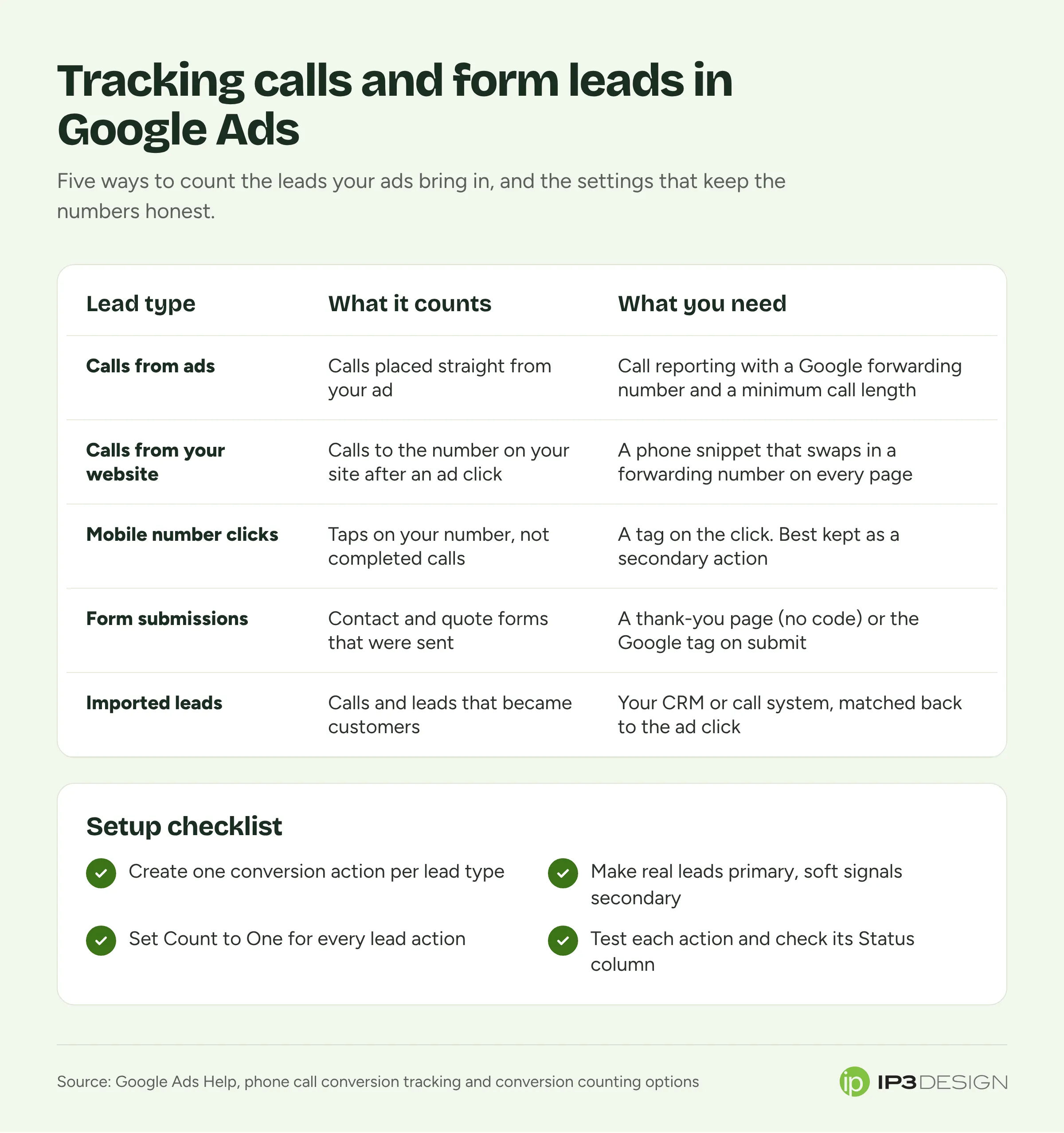
How to track form leads
Forms are simpler than calls, but there’s one choice to make up front: how Google knows a form was sent.
The thank-you page method
If your form sends people to a separate confirmation page after they submit, you’re in luck. Google Ads can count a lead every time someone lands on that page. Google calls this setting it up “with URL,” and it needs no code changes on your site.
When you create the conversion action, you tell Google which page counts. You can match the exact address (“URL is”), any address containing a word (“URL contains”, such as thank-you) or any address that begins a certain way (“URL starts with”). Use the tightest match that still catches every real submission. If the word “thanks” also appears in a blog post’s address, “contains” will count visits to that post as leads.
The code method
If your form shows a “Thanks, we’ll be in touch” message on the same page instead of loading a new one, there’s no page load to count. In that case you set up the conversion “with code,” which tells the Google tag to fire when the form is actually submitted. Google says code is also required for tracking button clicks and for passing different values for different conversions.
Our honest recommendation for most small sites: add a real thank-you page. It’s easier to track, easier to test, and it gives you a place to tell the person what happens next. When we build sites as part of our website design work, we set forms up this way for exactly that reason.
Watch out for double tagging
Many website builders and plugins offer to add Google Ads tags for you. That’s handy until someone also adds the tag by hand, or installs a second plugin. Google warns that tagging a site twice causes duplicate conversion reporting. If your form leads in Google Ads look suspiciously higher than the emails in your inbox, check this first.
Settings that quietly change your numbers
Getting the tag to fire is half the job. The settings on each conversion action decide what the numbers mean.
Count: “One” or “Every”
Each conversion action has a “Count” setting with two options. “Every” counts every conversion after an ad click. “One” counts only one conversion per click.
For leads, One is almost always right. If the same person fills out your form twice in a row because they weren’t sure it went through, that’s one lead, not two. Google’s own guide to conversion counting uses this logic, describing One as the better fit when you care whether a lead came in, not how many times the same person acted.
Here’s the catch: the defaults differ. Google sets calls from ads and calls to a number on your website to One by default, but website actions and clicks on your mobile number default to Every. That means a new form conversion action may be counting duplicates unless you change it. Changes only apply to future conversions, so fix it early.
Primary or secondary
Every conversion action is either primary or secondary. Primary actions are the ones Google’s automated bidding tries to get more of, and they show in your main “Conversions” column. Secondary actions are for observation only.
Make your real leads primary: qualifying calls, form submissions, imported customers. Make softer signals secondary, like taps on your mobile number or visits to your pricing page. If everything is primary, Google will happily chase the cheapest action on the list, and you’ll get more taps and fewer customers.
Don’t count the same call twice
If you track a call more than one way, say through website call tracking and through an import from your CRM, only one of those should be included in “Conversions.” Google notes that if two actions track the same calls and both are included, each call is counted twice.
Going further: tracking which leads became customers
Counting leads is a big step up from counting clicks. But not every lead is a good one. Someone might call to ask if you sell something you don’t, or fill out a form to pitch you their SEO services.
Google’s answer is to bring your sales results back into Google Ads. Enhanced conversions for leads lets the Google tag collect information a person enters in your form, like their email address, in a hashed (scrambled) form. Later, when you mark that lead as qualified or as a paying customer in your own records, you upload that result and Google matches it back to the original click. Google recommends using its “Qualified lead” or “Converted lead” goals for these.
To use it, you need auto-tagging turned on in Google Ads, an email address or phone number field on your lead form, and you have to accept Google’s customer data terms in the account settings. Since April 2026, Google has combined enhanced conversions for web and for leads into one setting.
This is worth it when you get enough leads that some are clearly better than others, and you already keep track of which ones closed. For a business getting a handful of leads a month, solid call and form tracking matters more. Start there.
A setup checklist you can work through this week
- List how leads reach you. Phone from the ad, phone from the website, contact form, quote form, booking tool. Each one needs its own conversion action.
- Turn on call reporting so calls from your ads use a forwarding number and count when they pass your minimum length.
- Add website call tracking with the phone snippet on every page that shows your number.
- Track each form with a thank-you page or the code method, and check you’re not tagging the site twice.
- Set Count to One on every lead action.
- Pick your primary actions and make everything else secondary.
- Test everything. New conversion actions show as “Unverified” or “Inactive” until Google records the first conversion, which Google says is normal. Submit a test form, place a test call from an ad click, and check the “Status” column on the conversions summary page a day or so later.
- Compare with reality once a month. Hold your Google Ads lead count up against your call log and inbox. They won’t match perfectly, but if they’re wildly off, something is broken.
Common questions about Google Ads conversion tracking
Do I need Google Tag Manager to track conversions?
No. You can install the Google tag directly on your site, and for a thank-you page conversion you may not need any extra code at all. Tag Manager is useful if you have lots of tags to manage, but it isn’t required.
Why does Google Ads show more conversions than leads I actually got?
The usual causes are a form conversion set to count Every instead of One, the site being tagged twice, a “URL contains” rule that matches pages that aren’t thank-you pages, or the same calls counted by two included actions. Check those four settings first.
Will my real phone number disappear from my website?
Only for people who arrive from your ads, and only while they’re on your site. Everyone else sees your normal number, and forwarded calls still ring through to your line.
How long should a call be to count as a lead?
Google lets you choose the minimum. Think about your own calls: how long does a real inquiry usually take compared with a wrong number or a quick sales pitch? Set the minimum above the junk calls and below your shortest real ones, then check your call details report after a few weeks and adjust.
Does conversion tracking affect my organic search rankings?
No. It only measures results from your ads. To see how people find you in regular search results, Google Search Console is the tool, and our Search Console guide walks through it.
Want a second set of eyes on your tracking?
Good conversion tracking is the difference between guessing what your ads do and knowing. Every other decision in the account depends on it, so it’s where we’d start. As a Google Partner, our Google Ads management team can get your calls and forms counted correctly before anyone touches keywords or budgets.
If you’d like us to look at what your account is tracking today, get in touch with our team. We’ll tell you plainly what’s working, what’s missing and what we’d fix first.