How to Use Google Search Console: A Beginner's Guide for Business Owners

You probably know roughly how many people visit your website. What you may not know is how many people saw your business in Google and decided not to click, which searches you show up for, or whether Google has quietly stopped including some of your pages at all. That’s the part of the story that happens before anyone reaches your site, and it’s exactly what Google Search Console shows you.
Search Console is Google’s own tool for website owners. Google describes it as a way for “anyone with a website” to understand how they’re performing on Google Search, and to see how Google crawls, indexes and serves their pages.
It can look intimidating at first, with a dozen reports and warnings that sound alarming but often aren’t. This guide covers what a business owner actually needs: how to set it up, which reports matter, what to ignore, and a short monthly routine you can stick to.
What Search Console tells you that nothing else does
Most analytics tools tell you what people do once they land on your site. Search Console tells you what happens on Google before they get there. It answers questions like these:
- Which searches is my site showing up for?
- How often do people see my site in results, and how often do they click?
- Which of my pages are in Google’s index, and which aren’t (and why)?
- Has Google found a security problem or taken manual action against my site?
If you run a dental practice in Glendale, for example, Search Console can show you that you appear for “emergency dentist glendale” hundreds of times a month but almost nobody clicks. That one fact tells you more about what to fix than a month of guessing.
Setting it up the right way
Setup takes a few minutes, but two early decisions trip people up: which type of property to create, and how to verify it.
Domain property or URL-prefix property?
In Search Console, a “property” is the website you’re tracking. Google offers two types of website property, and the difference matters more than it looks:
- Domain property. Covers your whole domain: every subdomain (www, m, shop and so on) and both http and https. This is the one we recommend for almost every small business, because nothing slips through the cracks.
- URL-prefix property. Covers only addresses that start with the exact prefix you enter, including the protocol. Google’s own example: a property for
http://example.com/doesn’t includehttps://example.com/orhttp://www.example.com/. If your site runs on more than one protocol, you’d need a separate property for each.
The catch is that a Domain property can only be verified one way: by adding a DNS record at the company where your domain is registered. If nobody at your business can log in to that account, fix that first. It matters for far more than Search Console.
Verifying that you own the site
Verification proves to Google that you’re allowed to see the data. Google lists several methods:
- DNS record at your domain provider (a TXT or CNAME record). This is the only option for a Domain property.
- HTML file upload to the root of your site.
- HTML tag added to the head of your homepage.
- Google Analytics tracking code already on your homepage, if you have edit rights on that Analytics property.
- Google Tag Manager container on your site, if you have publish or admin permission.
The last four only work for URL-prefix properties. Google notes that a manually added DNS record can take two or three days to be served, so don’t panic if verification fails right away.
Two things people get wrong after setup:
- They remove the verification later. Google keeps checking that your token is still there. Delete the DNS record, the HTML file or the tag, and you’ll eventually lose access. Google specifically says not to remove the DNS record, even after verification succeeds.
- Only one person has access. Multiple people can verify the same property, and you can add other users in Settings. Make sure the account owner is someone at your business using an account you control, not a former employee or a web company you stopped working with years ago.
Once your property is added, data starts showing up within a few days. Google begins collecting it as soon as the property is added, even before verification finishes.
The Performance report: your search numbers
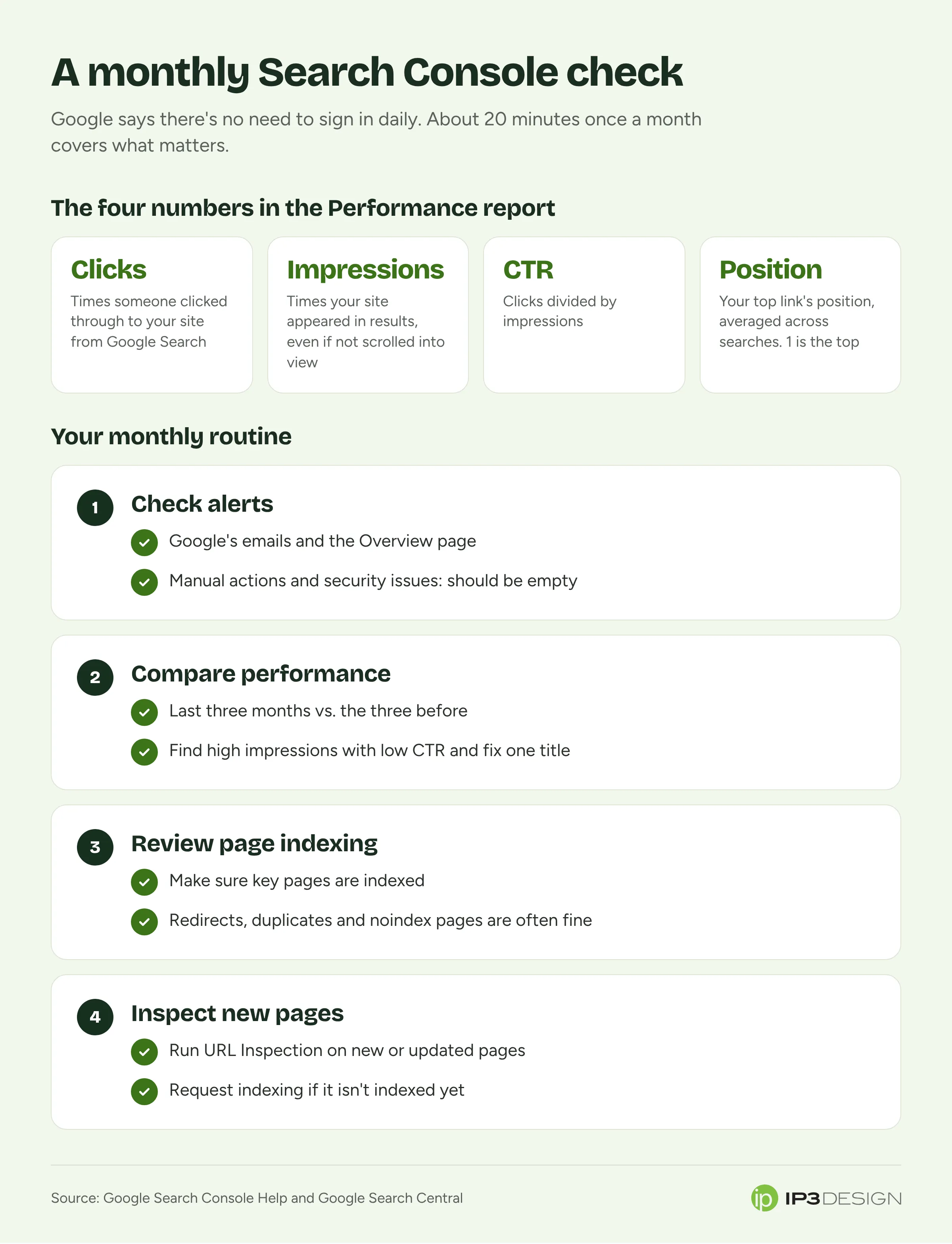
This is the report you’ll use most. It shows four numbers, and it’s worth knowing exactly what each one means, because they’re easy to misread.
- Clicks: how many times someone clicked through to your site from Google Search results.
- Impressions: how many times your site appeared in results. An impression generally counts when your link is on the page of results the person is viewing, whether or not they scrolled down to it. (Carousels and infinite-scroll results are different and usually need to be scrolled into view.) Google’s page on how impressions, position and clicks are counted has the full rules.
- CTR (click-through rate): clicks divided by impressions.
- Average position: the position of your highest-ranking link for each search, averaged across all the searches you appeared in. Position 1 is the top.
Average position confuses everyone. If your site ranked 2nd for one search and 3rd for another, your average position is 2.5. A site-wide number like “14.3” might mean you’re near the top for a few searches and far down for many others. Look at average position for individual queries or pages, not the site as a whole.
How to read it without getting lost
Below the chart, the report breaks data down by queries, pages, countries, devices, search appearance and dates. The default view shows the past three months. Very recent data can be preliminary and may change over the next few hours, so don’t react to today’s numbers.
Here’s how we’d actually use it:
- Click the Queries tab and sort by impressions. These are the searches people see you for. You’ll often find searches you didn’t expect, both good and irrelevant ones.
- Look for high impressions with low CTR. That usually means people see your listing and pass it by. The fix is often a clearer page title and description that match what the searcher wants. A Pasadena law firm showing up for “free consultation” searches, with a title that never mentions consultations, has an easy win waiting.
- Look for queries with an average position between about 8 and 20. These are searches where you’re close to page one but not quite there. Improving the page that ranks for them is often faster than trying to rank a brand-new page.
- Switch to the Pages tab. See which pages earn the most clicks. If your most important service page barely appears, that’s a sign it needs work, or that another page is competing with it.
- Compare date ranges. Comparing the last three months to the three months before shows whether you’re growing or slipping, and which pages moved.
Branded vs. non-branded searches
In late 2025, Google added a branded queries filter to the Performance report for eligible sites. It splits your searches into branded ones (your business name, misspellings of it, and your named products) and everything else. That’s useful, because people searching your name were going to find you anyway. Non-branded searches are where SEO work shows. Google says it’s only available for top-level properties with enough search volume, so smaller sites may not see it yet.
The Page indexing report: is Google including your pages?
A page has to be in Google’s index before it can show up in results. The Page indexing report shows how many of your pages are indexed and lists reasons the others aren’t.
Here’s the part that saves a lot of worry: not every page should be indexed, and a long “not indexed” list doesn’t automatically mean something is broken. Google says plainly not to expect every URL on your site to be indexed. Pages that redirect elsewhere, duplicate pages that point to a main version, and pages deliberately marked “noindex” are all supposed to stay out.
Google also says that if your site has fewer than 500 pages, you probably don’t need this report much at all. For most small business sites, that’s true. What matters is whether your important pages are indexed: the homepage, each service page, location pages and key blog posts.
The reasons you’ll see most
- Page with redirect. The address redirects to another page. Normal after a redesign, as long as the new page is indexed.
- Alternate page with proper canonical tag. A duplicate that correctly points to the main version. Fine.
- URL marked ‘noindex’. The page tells Google not to index it. Fine for thank-you pages and admin pages, a serious problem if it’s on a service page. It can happen when a site launches with a “hide from search engines” setting still switched on.
- Not found (404). The page no longer exists. Fine if you deleted it on purpose. If other pages or old links still point there, redirect it to the closest replacement.
- Discovered - currently not indexed and Crawled - currently not indexed. Google knows the page exists but hasn’t added it. On a small site, this often points to thin or very similar pages. Making the page more useful and linking to it from other pages on your site usually helps more than anything technical.
The report includes a Source column showing whether the issue comes from Google or your website. Generally, you can only fix the ones that come from your website.
When you’ve fixed an issue, click Validate fix. Google rechecks the affected pages, which it says typically takes up to about two weeks and sometimes longer. Fix every instance first, because validation stops as soon as Google finds one that’s still broken.
URL Inspection: checking one page
The URL Inspection tool shows what Google’s index has for one specific address on your site, including whether it’s indexed. You can also run a live test to see whether Google can fetch the page right now.
This is the tool to use when you’ve published a new service page or made a big update. Inspect the page, and if it isn’t indexed yet, click Request indexing. It doesn’t guarantee anything and indexing is never instant, but it lets Google know the page is ready.
Sitemaps: helpful, not magic
A sitemap is a file on your site that lists its pages. In the Sitemaps report, you paste in its address and click Submit, and Google fetches it. The status should read “Success.” If it says “Couldn’t fetch” or “Has errors,” click the row to see why.
Two things to know. First, submitting a sitemap doesn’t guarantee Google will crawl or index every page on it; Google is clear about that. Second, Google says sites of about 500 pages or fewer may not need one at all. We’d still submit one, because it takes a minute and can help new pages get found, but it isn’t the cure for a page Google won’t index.
Other reports worth a glance
You don’t need to master everything in the menu. These are the others worth knowing about:
- Manual actions. Shows any manual action Google has taken against your site. You want this empty.
- Security issues. Lists security problems Google has detected on your site. If anything ever appears here, deal with it that day.
- Core Web Vitals. Shows how your pages perform for real visitors on loading speed, responsiveness and visual stability. We’ve explained these measures in our post on Core Web Vitals.
A simple monthly routine
Google says you don’t need to sign in every day; it emails you when it finds new issues. It suggests checking around once a month, or whenever you make changes to the site. That matches what we’d recommend. Put 20 minutes on the calendar each month and do this:
- Check your email and the Overview page for anything new under manual actions, security issues or indexing.
- Open the Performance report and compare the last three months with the three months before. Note any big drops or jumps, and which pages caused them.
- Scan Queries for high impressions and low CTR. Pick one page to improve its title and description.
- Open Page indexing and make sure your important pages are still indexed. Ignore the expected exclusions.
- Inspect any page you published or changed that month and request indexing if needed.
If traffic ever drops sharply, start in the Performance report: which pages, queries and devices lost clicks.
Mistakes we see business owners make
- Setting it up and never opening it again. Make sure Google’s emails go to an inbox someone reads.
- Panicking over the “not indexed” count. Most of those pages are supposed to be excluded. Focus on the pages that matter.
- Judging the site by one average position number. Look at queries and pages individually.
- Letting a former web company own the account. If they leave, you may lose your history. Add yourself as an owner.
Frequently asked questions
Is Search Console the same as Google Analytics?
No. Analytics tracks what visitors do on your site. Search Console covers how your site appears in Google Search before anyone clicks: impressions, search queries, indexing and technical issues. Most businesses benefit from having both.
How long does it take to see data?
Google says data starts to appear within a few days of adding a property. Collection begins as soon as the property is added, even before verification is complete.
Do I need to submit a sitemap?
For a small site it’s optional, but it’s a good habit. It helps Google find new pages, though it doesn’t guarantee they’ll be indexed.
Why don’t my clicks match my website visits?
Search Console counts clicks from Google Search only, while analytics counts visits from every source and measures them differently. Gaps are normal.
Want a second pair of eyes?
Search Console is one of the first places we look when a business asks us why its website isn’t bringing in calls. It’s a core part of our SEO work, and if you’re planning a new site through our website design service, it’s worth setting up on day one. If you’d like help setting it up, or want someone to look at your reports and tell you what actually matters, get in touch and we’ll take a look.